Posts

Image background removal using Krita
Image
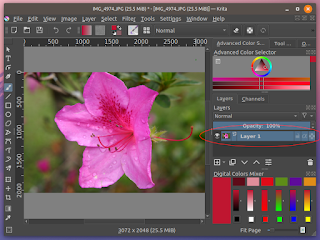
Like other image editing software such as Gimp or Photoshop , Krita has similar tools to remove the background of an image non-destructively using transparency masks. The following steps show how: Open up an image in Krita . In the Layers pane on the right, mouse right click on the paint layer. A pop up menu appears . Choose Add | Transparency Mask . A transparency mask sub layer is created underneath the paint layer . Draw a selection polygon roughly around the foreground object in the image using the Polygonal Selection Tool , as shown below. Then in the File menu, click Select | Invert Selection . Choose Black as the foreground color. Choose a Brush e.g. Basic-1 Ink . Make sure the transparency mask layer is selected or active. Then paint over the background. Choose Select | Deselect to remove the selection polygon. The marching ants selection polygon is removed . Make the brush size smaller and zoom closer  to the background - foreground boundary. Brush over t...

SVG abstract colorful geometric background for download

Image
I made this free colorful abstract geometrical background and published it on the OpenClipart site. Click here  https://openclipart.org/detail/318138/abstract-colorful-geometric-background  to download.

Using Krita's Colorize Mask Editing Tool to color line art drawings

Image
The usual way to color line art drawings in digital image manipulation software is to use a Color Fill tool to fill an area bounded by line work. Krita has a useful tool called the Colorize Mask Editing Tool which allows you to simply draw a patch inside the line work with the color you want to fill. Once all the color patches have been drawn, you could preview the color fill and if everything is to your satisfaction, you can just click a button to save the color fill permanently. The following steps illustrate: Start Krita . Open up a line work drawing e.g. christmas_tree.svg . Then in the main tool bar, click the Colorize Mask Editing Tool , as highlighted in a red circle in the screenshot above. Then click on the drawing. The line work becomes transparent . A new Colorize Mask layer is created . If a brush is not selected, then choose a brush e.g. Basic-1 . Adjust the brush size if necessary. Then use the Advanced Color Selector pane to choose the desired color for the ...

Cretan Ram sketch

Image
I just did a sketch of a Cretan Ram done using the Serious Paint Android app on a Nexus 7 tablet. Brushes used were the Pencil and Smear brushes. And colored with a Soft Shader brush

Digital Dog Portrait

Image
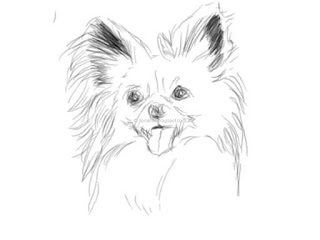
Another digital art piece done using the Android App - Serious Paint  on a tablet. This time I was trying out different brushes - pencil , soft shader , and blend, and varying the brush diameter. I used the Save function to save the work-in-progress at different stages this time, as shown below. I must say the Blend brush result looks like blending charcoal with my finger. Pencil sketch outline Beginning color shading Final piece I used a rubber tip stylus and at times my finger. Sometimes, I wish the stylus was more sensitive and it didn't drag and stick on the screen as much.

Portrait of a cat painted on a tablet using the Serious Paint Android app

Image
Here is a digital art of a cat(!) painted on an HP Touchpad running Android Jelly Bean using this nice free app - Serious Paint  and a cheap rubber tip stylus. The Serious Paint app looks similar to another Android app for painting - Infinite Painter but it is much more stable; Infinite Painter keeps crashing all the time to the point that you can't do anything worthwhile.

How to clip lines with a polygon using Inkscape

Image
In Inkscape , the Clip function can be used to clip one or more lines with a polygon. The trick is to group all the lines together before clipping as shown in the example below. In Inkscape , select all the vector lines using the Select and transform objects tool (F1) . Select Object | Group . The lines are grouped as one . Now select the polygon. Select Edit | Copy to make a copy of the polygon. Then select Edit | Paste in Place . The polygon is copied and pasted on top of the lines . Now press SHIFT and click to select the group of lines together with the polygon. The polygon and the group of lines are selected . Select Object | Clip | Set . The lines are nicely clipped to the polygon .