Posts

Showing posts with the label Photoshop

Restoring yellowed paper scan using self-screen blend mode in Gimp
Image
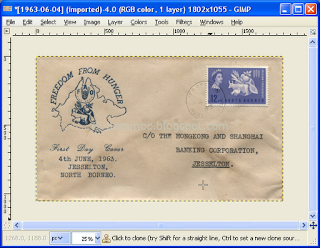
In Gimp or Photoshop , you can overlay an image with itself and blend the layers together with a blending mode e.g. multiply , dodge , burn , screen , etc. I found that a self-image blend i.e. an image with itself, with the screen mode can restore yellowed paper quite nicely and easily. By definition, the screen blend mode will lighten colors but leave black neutral and untouched. Using this technique, I managed to restore the yellowed paper scan below to a reasonably looking version quickly. Run Gimp . Open up the yellowed paper image. In the layers pane, right click on the yellowed paper image. A pop up menu appears . Choose Duplicate Layer . The layer is duplicated . Choose the duplicated layer. Then click the Mode combo box as shown below. In the drop down list, choose Screen . The screen blend mode is applied . The yellowed paper is restored and looks less aged .

Digital Traditional Color Palette

Image
I was having difficulty in locating a digital traditional color palette for digital painting so I made this digital traditional color palette from the default swatch of Photoshop .

Using Photoshop to touch up and cut a passport photo to the right size and ratio

Image
Anybody can take their own photos from any digital cameras for use as passport photos. The example image below is a sample passport size photo taken by yours truly. With digital cameras so common nowadays, you don't really need to go to your friendly neighborhood photo studio and get somebody there to take your photo; you can take it yourself and save your hard earned money for something else. However, you may need to do some touching up of the image to clean up the photo like removing shadows and other unnecessary background details. For this purpose, you can use any image processing software like Photoshop or the free open source GIMP software. After taking the photo, the background may have unwanted details like shadows or the wrong color as shown below. I will describe the steps using Photoshop below to remove the background and to cut the photo to the right ratio and pixel size. Run Photoshop and open up the photo. In the Layers palette, click the menu icon and choose Dupl...

Use Photoshop's Healing Brush to Blend colors

Image
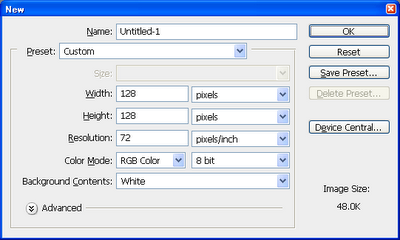
Photoshop's Healing Brush tool can be used to blend two colors while doing digital painting. The results can look more aesthetically pleasing than a blend using the Gradient tool. Here's how to use the Healing Brush as a blender. Create a Pattern In Photoshop, select File > New . The New dialog box appears . In the width and height fields, type in 128 pixels and leave the rest as default. Click OK . The new image is created . In the Photoshop pulldown menu, select Edit > Define Pattern . The Pattern Name dialog box appears . In the Name field, type in your preferred name, e.g. blender . Click OK . The pattern is created . Close the image file without saving. Now that the pattern is created, you can now use the pattern in blending colors with the Healing Brush . Blending Colors In Photoshop, open up an image file with the colors you want to blend. An example is shown below. In the Photoshop tool bar, click on the Healing Brush tool (the icon that looks like a band-aid) o...